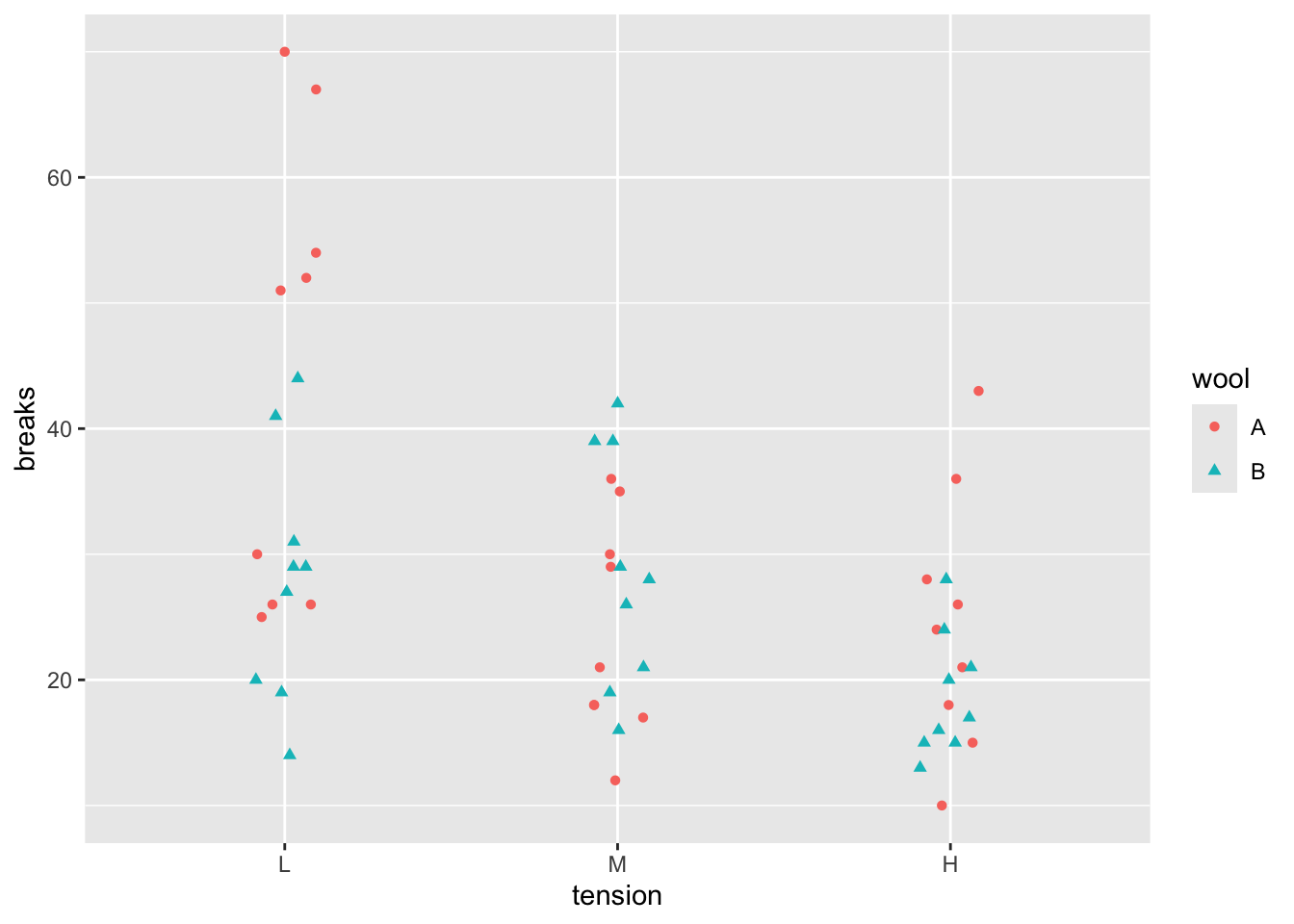
This chapter will discuss how to export graphics using the ggsave() function from the ggplot2 package. This will allow you to incorporate figure exporting into your script-based data pipeline. With that being said, you generally need to manually determine export settings that suit particular purposes, e.g. writing a report, posting on a website, etc.
library("tidyverse")
── Attaching core tidyverse packages ──────────────────────── tidyverse 2.0.0 ──
✔ dplyr     1.1.4.9000     ✔ readr     2.1.5
✔ forcats   1.0.0          ✔ stringr   1.5.1
✔ ggplot2   3.5.2          ✔ tibble    3.3.0
✔ lubridate 1.9.4          ✔ tidyr     1.3.1
✔ purrr     1.0.4
── Conflicts ────────────────────────────────────────── tidyverse_conflicts() ──
✖ dplyr::filter() masks stats::filter()
✖ dplyr::lag()    masks stats::lag()
ℹ Use the conflicted package (<http://conflicted.r-lib.org/>) to force all conflicts to become errors
Let’s first construct a figure and save it as an R object.
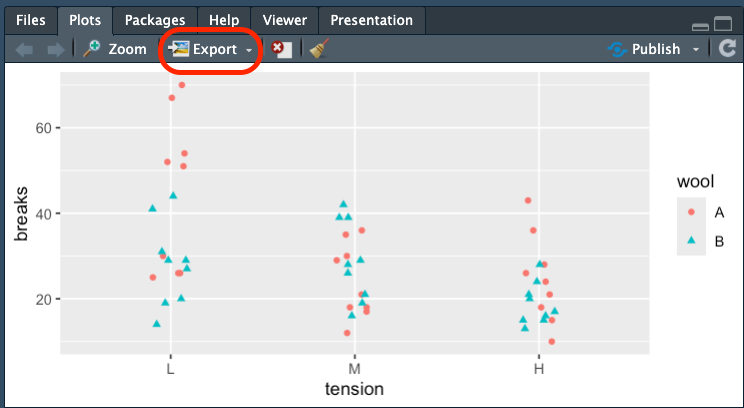
You can manually export an image using the Export option in RStudio.
RStudio Tools > Plots > Save as Image…
Here you will be determine where the file is saved, what the file name is, what type of image file is saved, and what the resolution is. But this is a manual process and it would be much better to automate saving of the image through a script.
19.2 Automatic
When you use a script to save your image, you will need to be aware of your current working directory. When you save the image it will be saved relative to the current working directory.
# Change working directorysetwd("../relative/path/to/some/other/directory")
Saving the figure as an object, in this case g will allow us to use ggsave() to export that object.
Here is a default export of a png file.
# Default png exportggsave(g, file="figure.png")
Saving 7 x 5 in image
The ggsave() function will automatically determine the figure format from the extension used. The resulting figure is a 7 x 7 in[ches] image.
Here is a default export of a jpg.
# Default jpg exportggsave(g, file="figure.jpg")
Saving 7 x 5 in image
We may want to save the files with different settings. For example, if we want the file to have 4k resolution (3840x2160), we can set the resolution of the image in pixels.
Incorporating saving images into your data pipeline workflow will ultimately save you time. But you will still need to spend time making sure all the details of the figure (font sizes, colors, etc) are appropriate for your desired outlet (document, website, etc).
# Remove all created filesunlink("figure.png")unlink("figure.jpg")unlink("figure4k.jpg")